

This page connects you to one app’s Assistant, to work with that app’s data. To build and change apps from your AI tool, connect to Gaia instead. See the Gaia connector.
Get the link
Each app’s Assistant has its own link. The app’s owner has to turn on sharing before there is one.1
Open Connectors
In the app, switch the sidebar to Assistant and select Connectors at the bottom of the chat list.
2
Copy the link
Select Copy link to Assistant. If you manage the app, the button is on the Share tab.
Add it to Claude
1
Add a custom connector
In Claude, open Plugins, select Add, then Add custom connector. In some versions of Claude it’s under Settings → Connectors.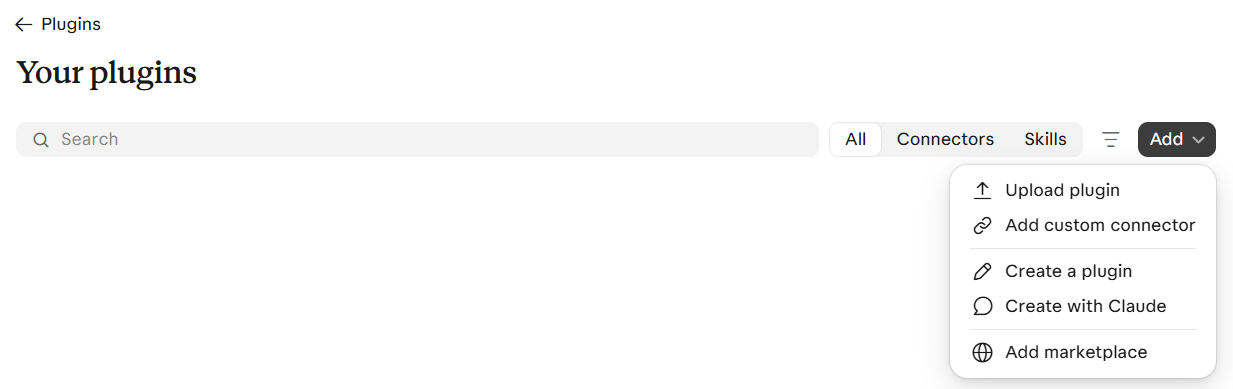
2
Name it and paste the link
Give it the app’s name, so you can tell your apps apart, and paste the link into the server URL field. Select Continue, leave the sign-in options Claude detects as they are, and select Add.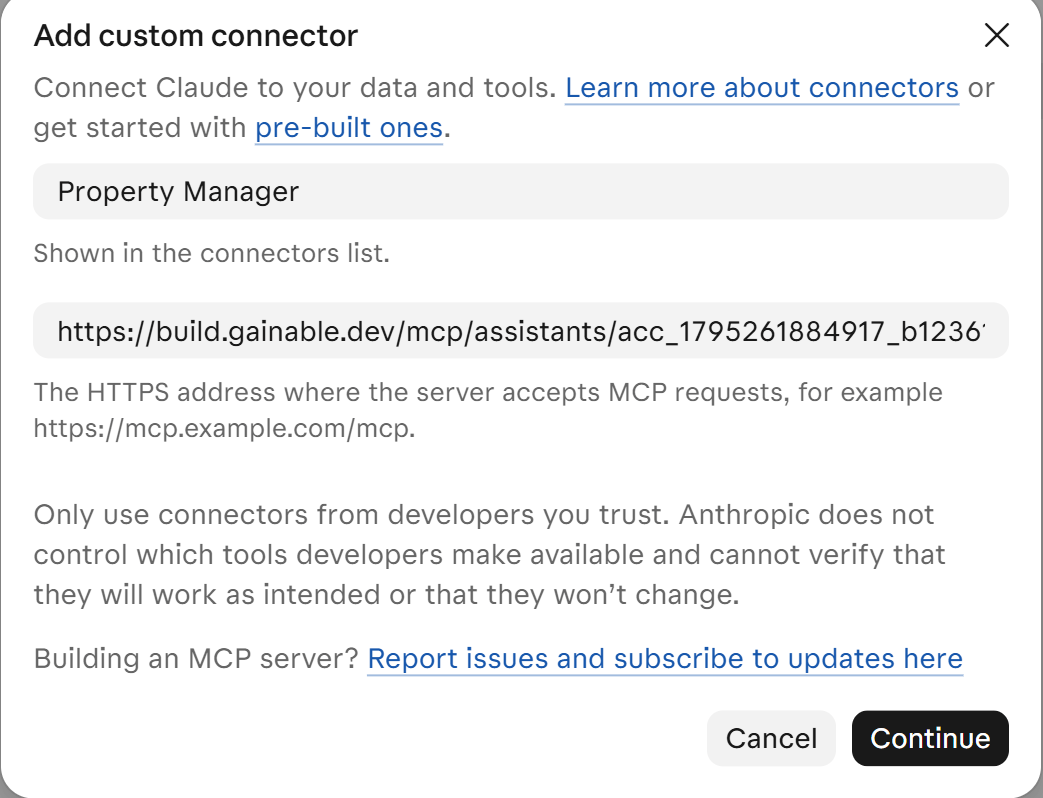
3
Sign in
Sign in with your Gainable account. Gainable shows what you’re connecting: the Assistant can read data and do work with your permissions in the app, and nothing else. Select Connect Assistant.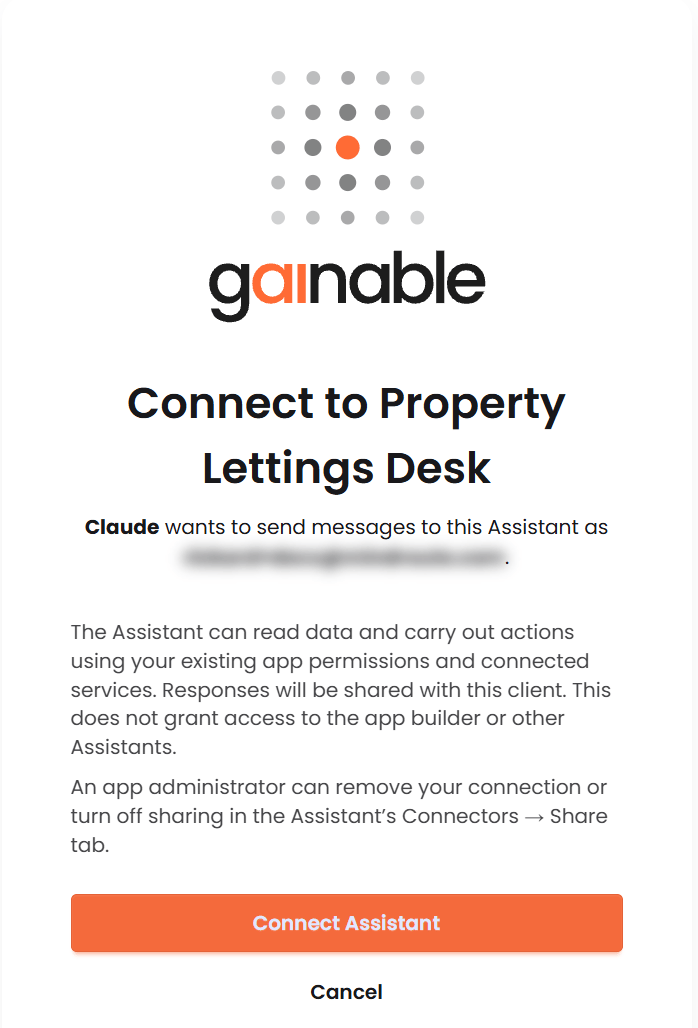
Add it to ChatGPT
Add the link as a custom connector, where your ChatGPT plan lets you add one, and sign in with your Gainable account when ChatGPT asks. In a chat, pick the connector and ask your question.Other AI tools
Any tool that supports remote MCP servers with OAuth sign-in works the same way: add the link as a server and sign in with your Gainable account.Make it part of your work
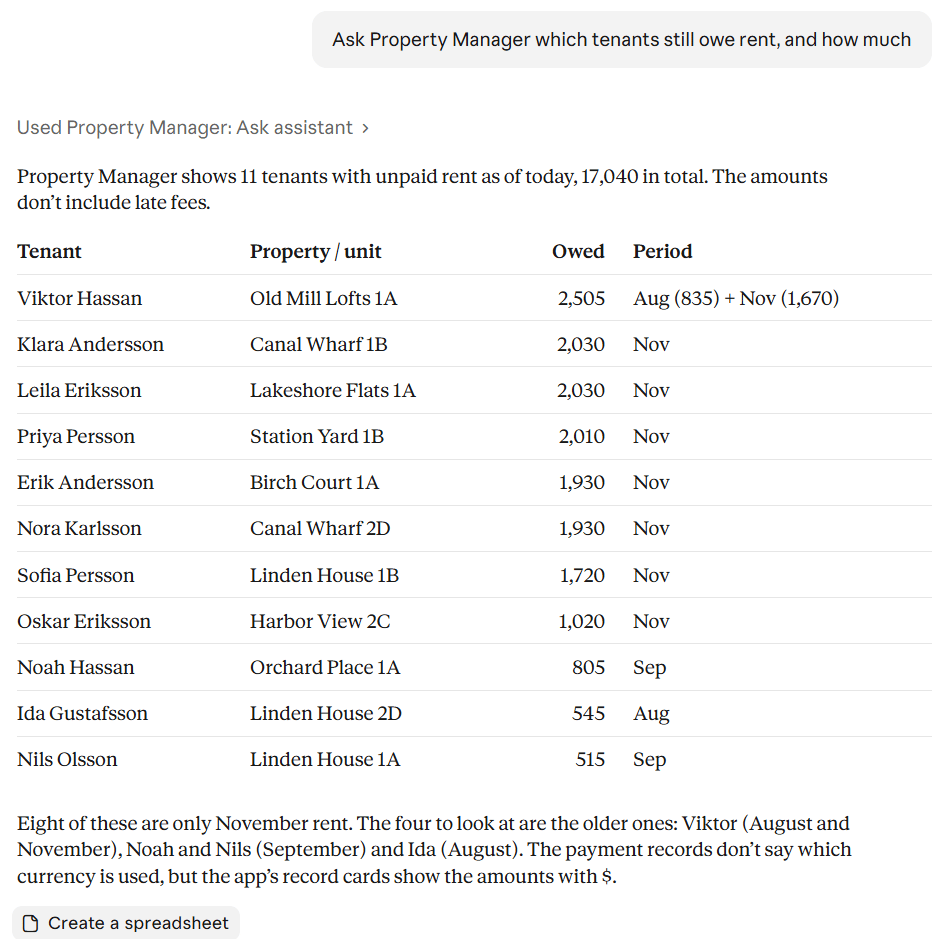
Connected once, the Assistant is there whenever you need the app’s data. A few ways to put it to work:Give a Claude project the app
Give a Claude project the app
Put the work around an app in its own project, and tell Claude in the project’s Instructions when to use it: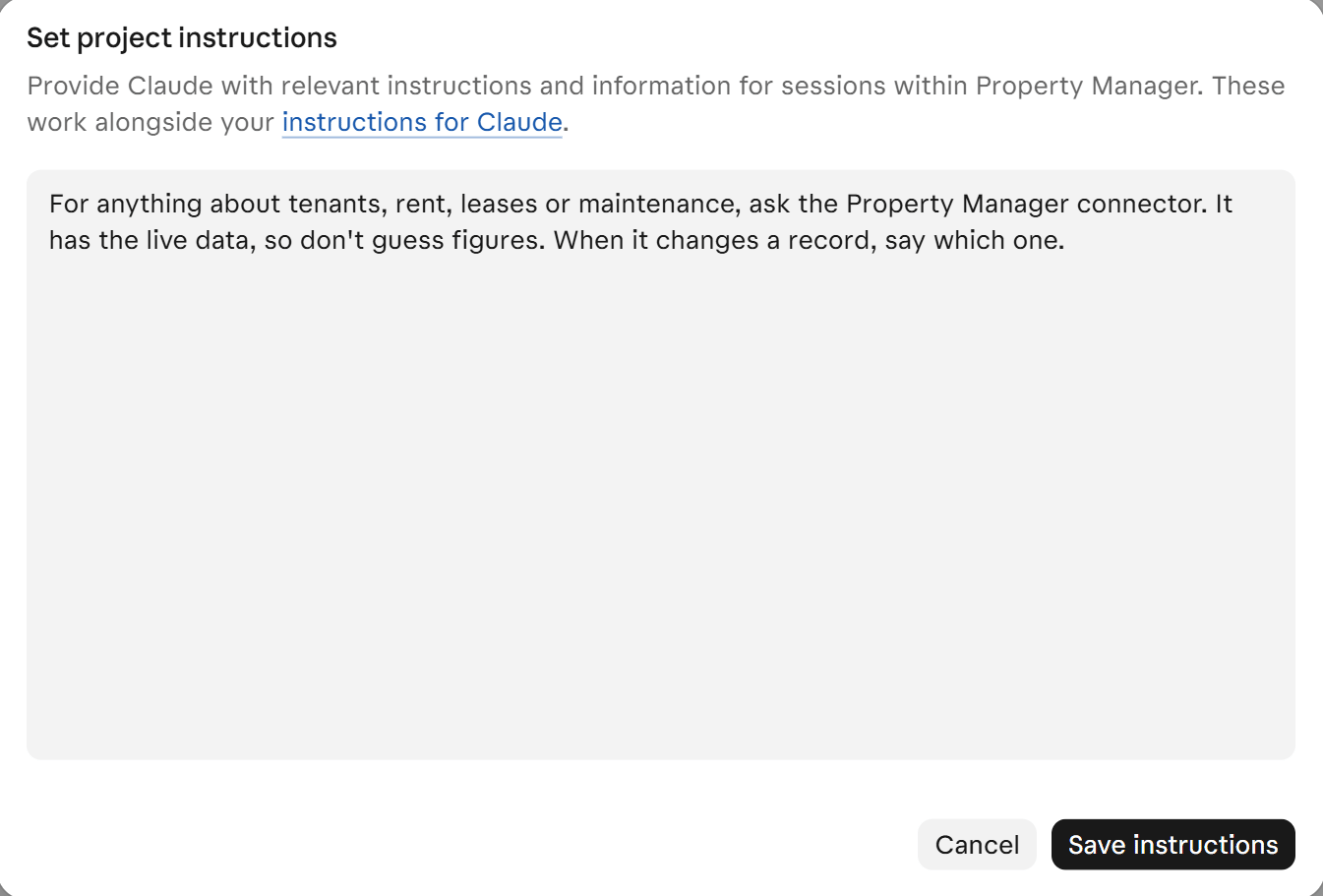
Schedule recurring work
Schedule recurring work
A Claude project can run tasks on a schedule: select Add next to Scheduled. For example, a weekly rent check: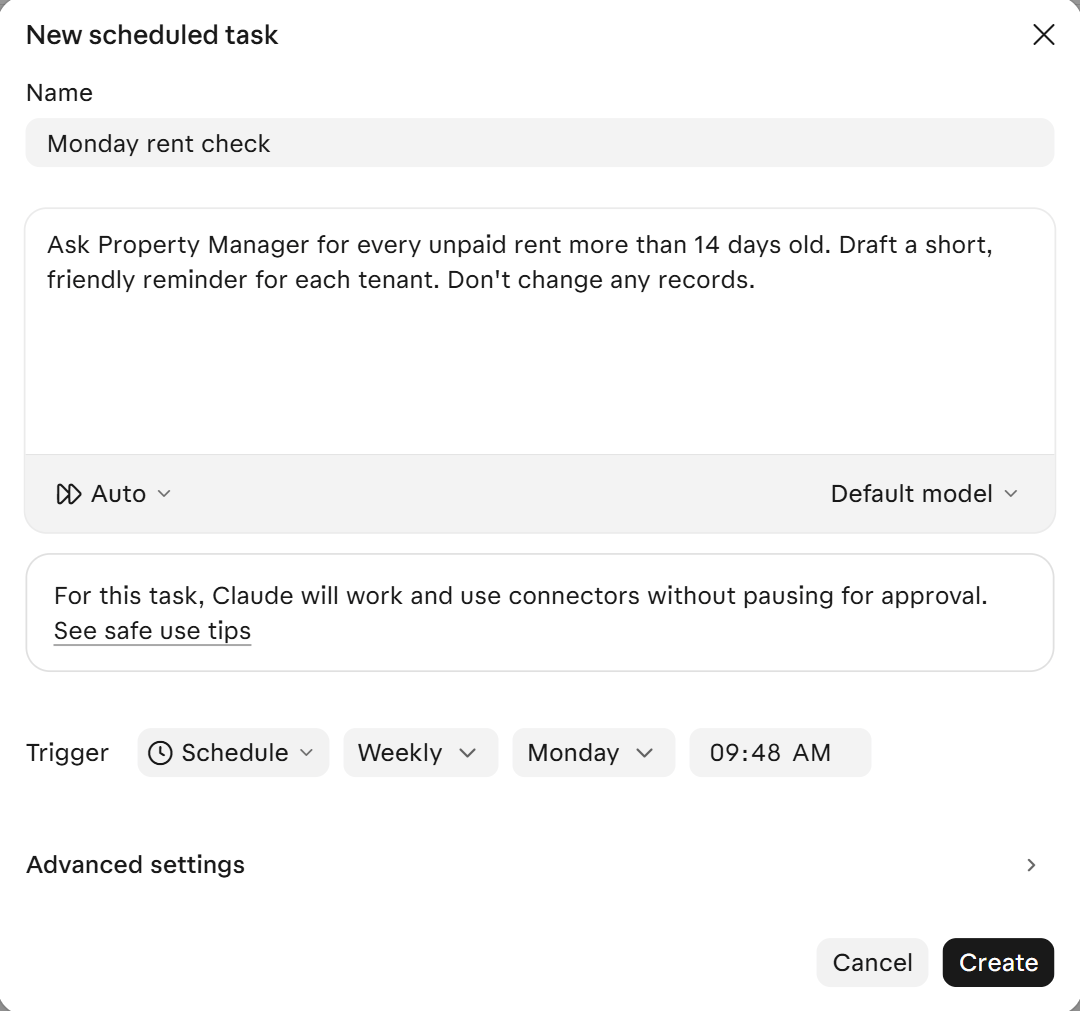
Combine it with your other tools
Combine it with your other tools
The Assistant works alongside the AI tool’s other connectors. Have Claude read an email and log it in the app:
Work across several apps
Work across several apps
Add each app’s Assistant as its own connector, named after the app. Your AI tool can then ask more than one in the same chat, for example to compare figures between two apps.
How it works
- It acts as you. The Assistant uses your access in the app. If you can’t see a record in the app, you can’t get it from your AI tool either.
- It can change data. Ask it to update or add records and it does, the same as in the app. Your AI tool may ask you to approve those requests.
- Your conversations are in the app. Each conversation also shows up in the app’s chat list, visible only to you.
- Longer requests take a moment. If a request takes more than about a minute, your AI tool checks back for the answer instead of sending the request again.
- One link, one app. The link reaches only this app’s Assistant. It doesn’t give access to other apps, to building apps, or to the rest of your Gainable account.