

This page is about the chat panel in the Gainable builder. Driving Gaia from Claude Code, Claude, or Cowork instead? The same planner does the work and the same advice applies — see the
chat tool reference for what differs.What happens when you send a change
1
The planner reads your request
It sees what’s already built, not just your sentence.
2
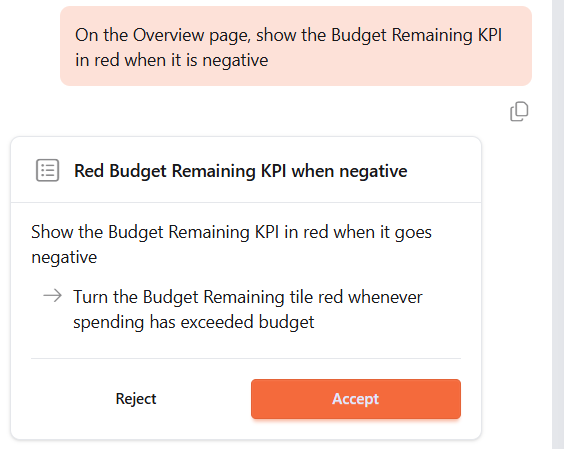
A plan card appears
A title, a one-line summary, and a checklist — written live, filling in as the planner works.
3
You accept or reject it
Nothing changes until you click Accept. Reject doesn’t undo anything; it throws the plan away so you can describe it differently.
4
The build runs
The send button becomes a stop button and the input reads “Agent working…”. Click stop to cancel.
When Gaia asks a question back
Sometimes the plan card is replaced by a question with two to four options. That happens when the request has more than one reasonable reading, is missing something the planner can’t infer, or is too vague to scope. It is not a failure, and it’s cheaper than the alternative. Answer it and the turn continues.If your request was about something you screenshotted, attach the screenshot again with your answer. The follow-up is an ordinary message, and re-attaching is the reliable way to keep the picture in play.
Say where the change goes
The page you’re on is a hint, not a target
The builder tells the planner which page you’re looking at, but treats it as a clue rather than an instruction — because a request that names somewhere else has to win.Name the thing you’re changing
Reference what already exists, by the name the app uses for it.Say it in the app’s own words
If the app already has a component that does the job, name it and you’ll get that component. Describe the behaviour instead and you may get a hand-written reimplementation of something that already shipped.Bug or preference?
This distinction is worth more than any other phrasing tip on this page. A bug is the app failing to do what it was built to do. A preference is you wanting it to do something different. Gaia handles both, but it handles them through different paths — and a preference reported as a bug sends it hunting for a defect that was never there.Keep the request small
One change per message
A small request gets a small, correctly-scoped plan. Padding one with extras you don’t need produces a plan that touches more of the app than it should.Name both ends of a move
A move needs a source and a destination. With only one, there’s nothing to change.Don’t add “keep X unchanged”
It reads like a safety net and works as the opposite. IfX doesn’t match something actually on the page, the clause sends the planner looking for it, and the request it was protecting gets lost. Existing views are edited surgically, never rewritten wholesale — the things you didn’t mention are already safe.
Show it instead: screenshots
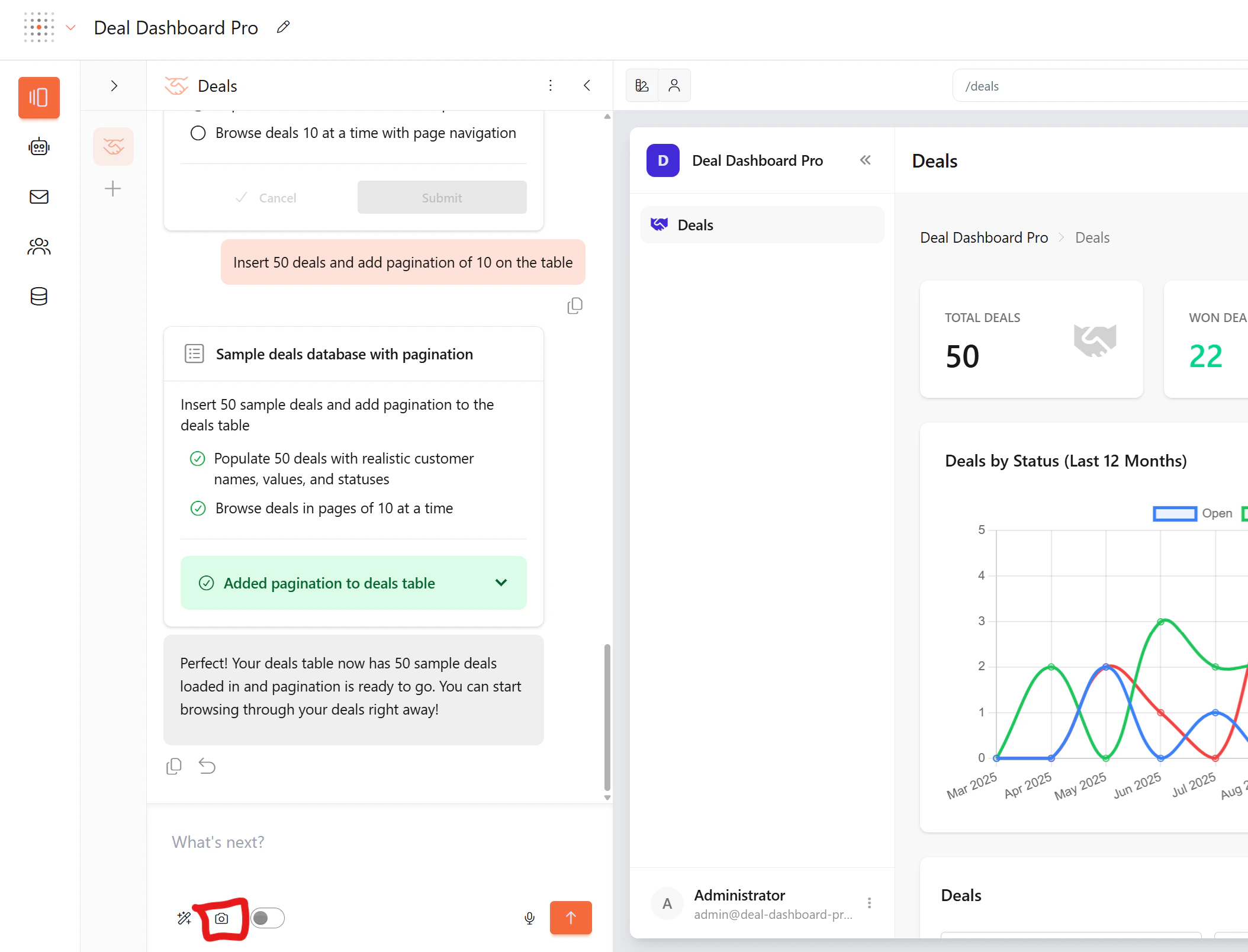
Sometimes words aren’t enough. Take a screenshot of your app and annotate it with drawings, arrows, and text to show exactly what you mean.1
Click the camera icon in the chat toolbar
2
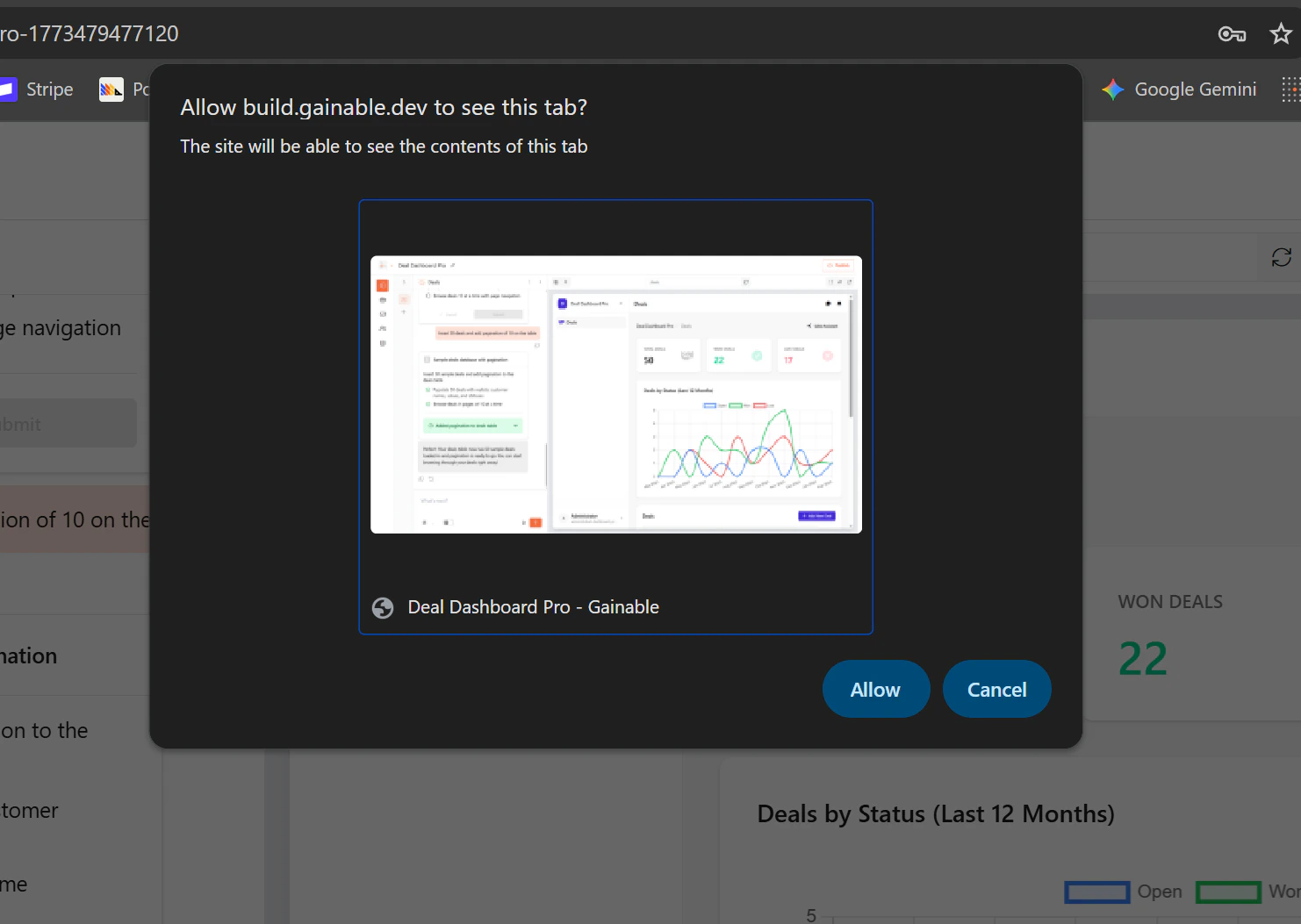
Allow the browser to capture the tab
3
Annotate it
Draw freehand, add arrows, drop in text labels, or box an area.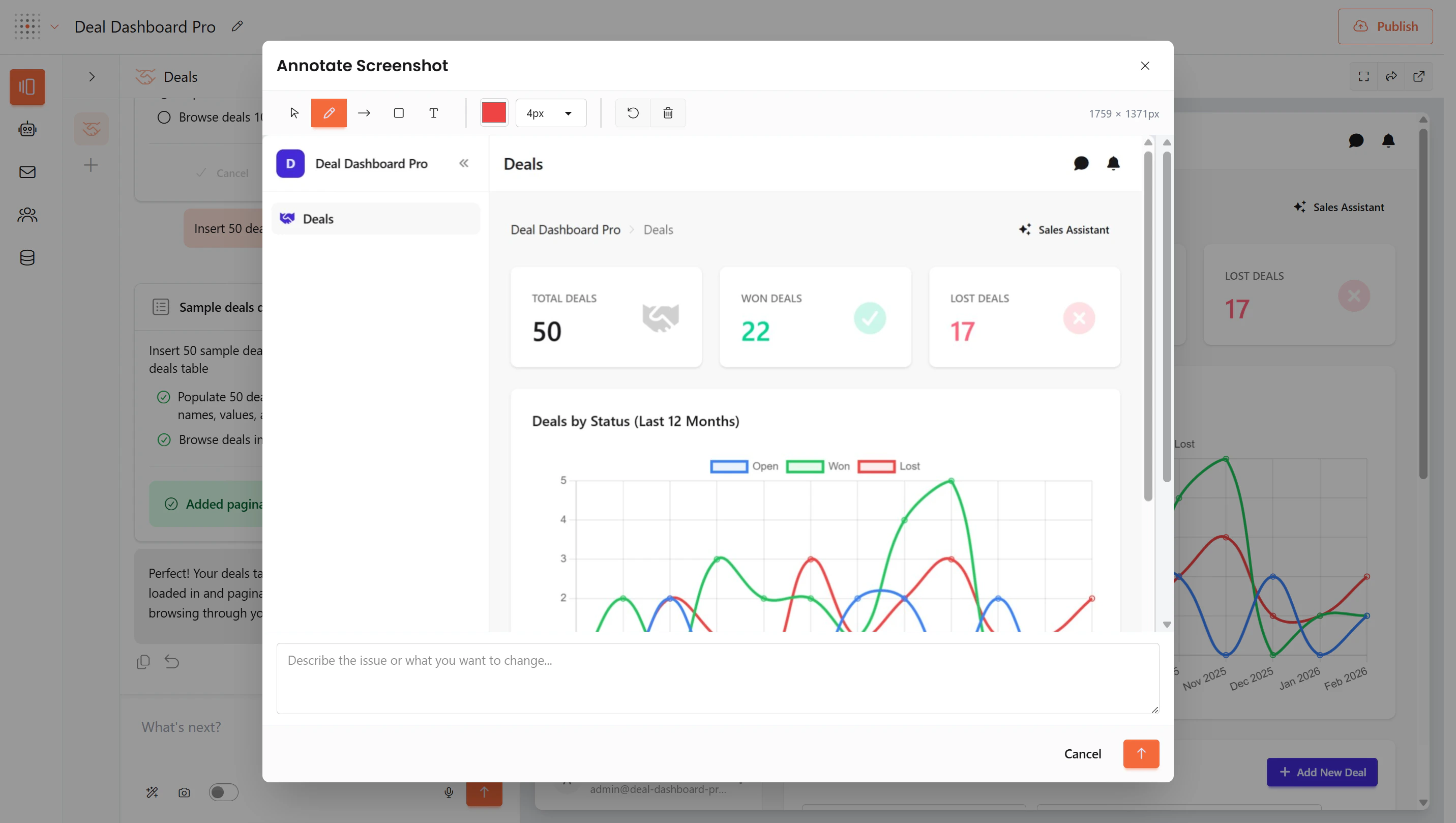
4
Add a written description and send
The drawing says where; the sentence says what.
Asking versus changing
Gaia can answer questions about your app without touching it.Adding a page, renaming a page
Asking for a page that doesn’t exist creates it. You don’t need a different command for a new page than for a change to an existing one — describe what you want and the planner checks it against the app’s real page list. Renaming a page is a display change. The name updates everywhere you see it, while the slug, the URL, and the underlying filenames stay as they are — so existing links keep working.Changing the URL is a different, larger request. Say so explicitly if that’s what you want.
Conversations
Every change belongs to a chat — the same conversation unit you see in the builder. An app can have as many as you like, and each is titled automatically from its first message.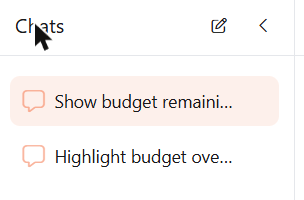
Which page you’re looking at doesn’t decide which chat you’re in. A chat can span the whole app.
Undoing a change
Every successful build is a snapshot. The most recent one can be reverted with the Undo this build button on its completion message.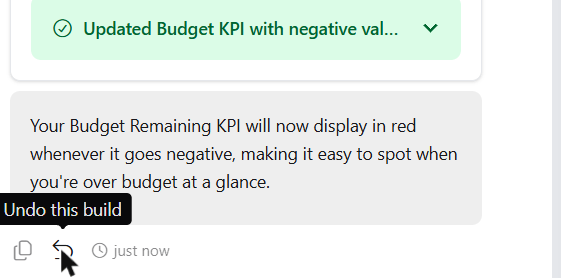
Example requests
Refinement-shaped requests, in the form that works:Learn more
Best practices
Writing the prompt that builds it in the first place
How it works
Iteration, undo, and commit history
Troubleshooting
When something’s wrong and you can’t say what
From your own agent
The same changes from Claude Code, Claude, or Cowork