

Your datasets
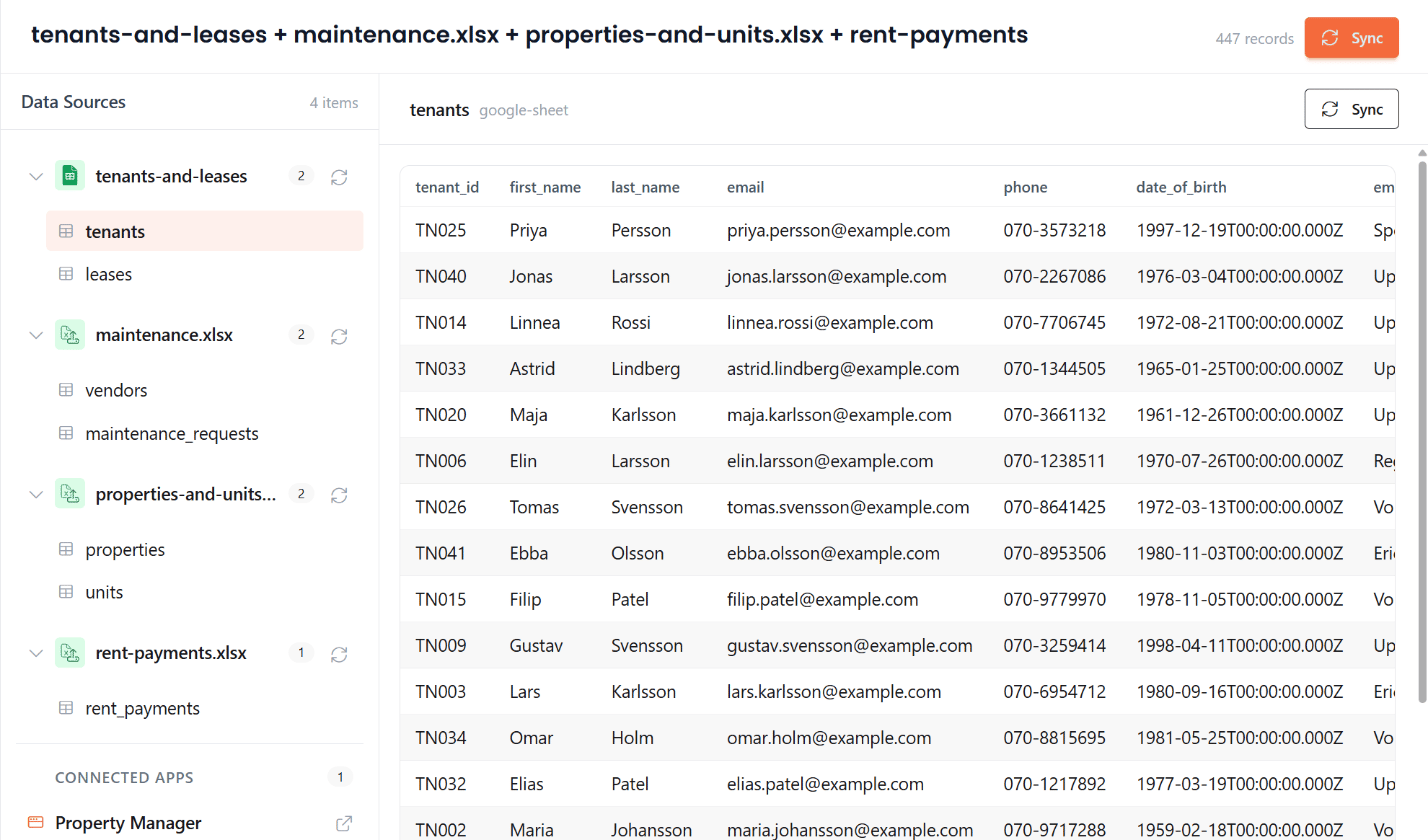
In the builder, open your account menu and select Data, then Datasets. Select a dataset to see:- Data Sources: each file, sheet or tool in the dataset and the tables it fills. Select a table to preview its rows.
- Connected apps: the apps built on this dataset.
- Sync: bring the dataset up to date. See Keep data in sync.
Connect a tool
To use data from a tool such as HubSpot, Stripe or Airtable, connect it under Data → Data connections first, then add the connection to a dataset. See Data connections. For a source that isn’t on the list, let your AI tool be the connector: it reads the source and sends the rows to a dataset. See Bring any source.Create a dataset
On build.gainable.dev, select Add data under the prompt, then Your datasets → New. That opens your datasets: select + next to Datasets and follow Create Dataset: give it a name, then choose which connections to include or upload files. To build from it, add it to the prompt from Add data → Your datasets. When several sources go into one dataset, Gaia analyzes them together into one data model and links records across them. A spreadsheet can link to a connected tool’s records by name or email, too.Keep data in sync
Select Sync on a dataset to bring it up to date from its sources.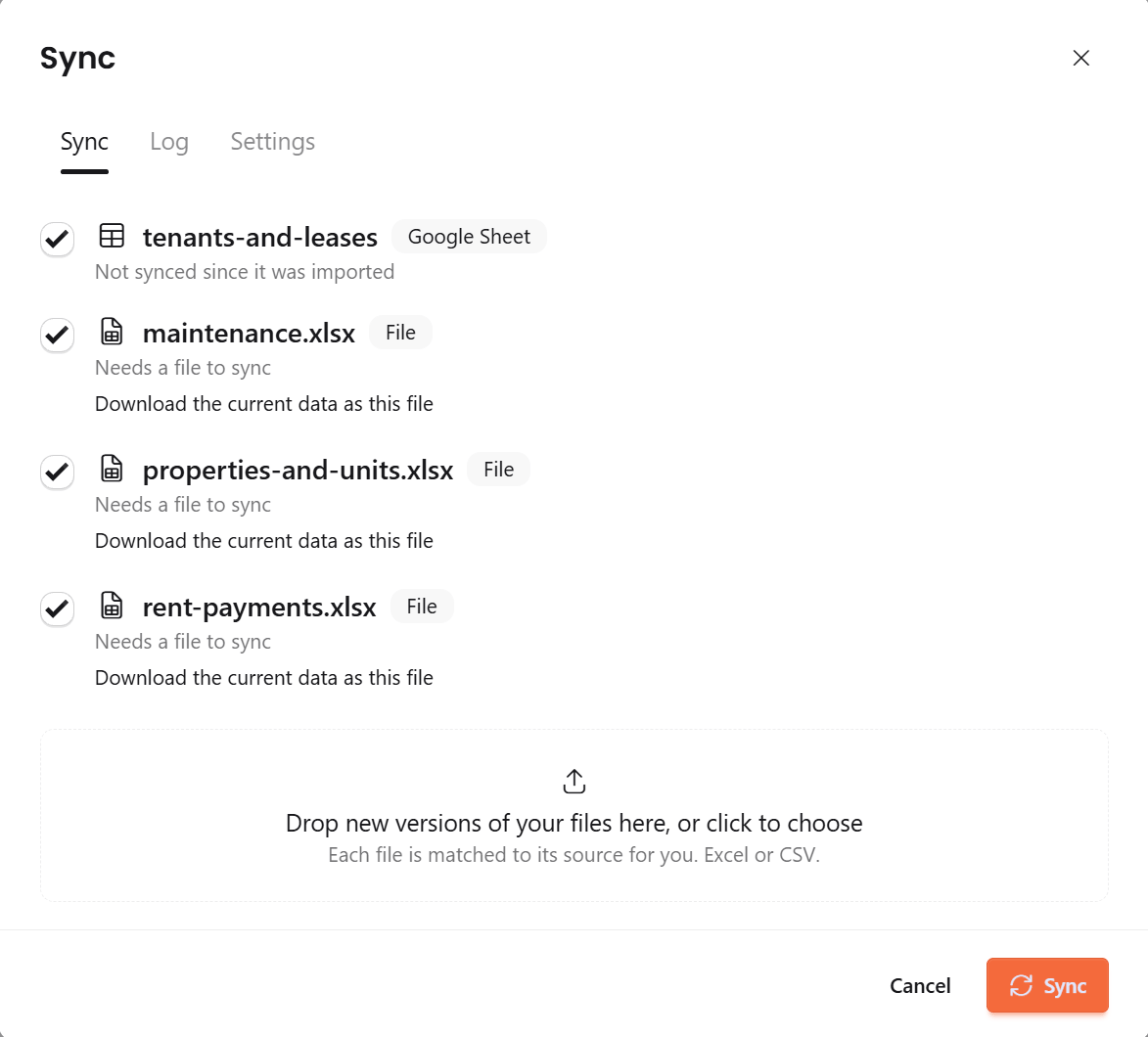
- Connected sheets and tools are read again directly.
- Uploaded files need a new version. Drop the new files in the dialog and each one is matched to its source. Download the current data as this file gives you the app’s current data in the file’s own layout, so you can edit it and upload it again.
Approval and two-way sync
The Settings tab in the Sync dialog sets how syncs are applied: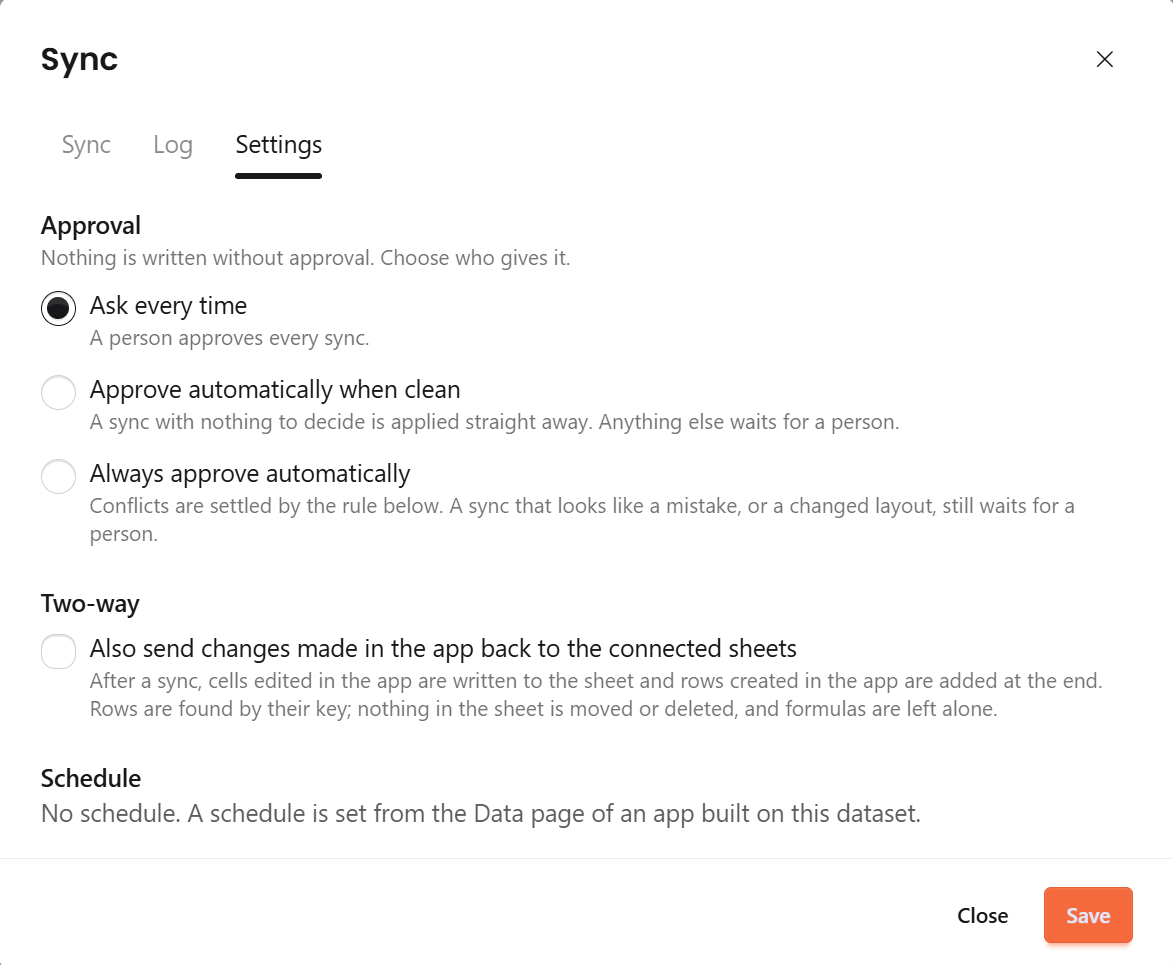
The people who can run and approve syncs for an app are its administrators and its Data managers.