

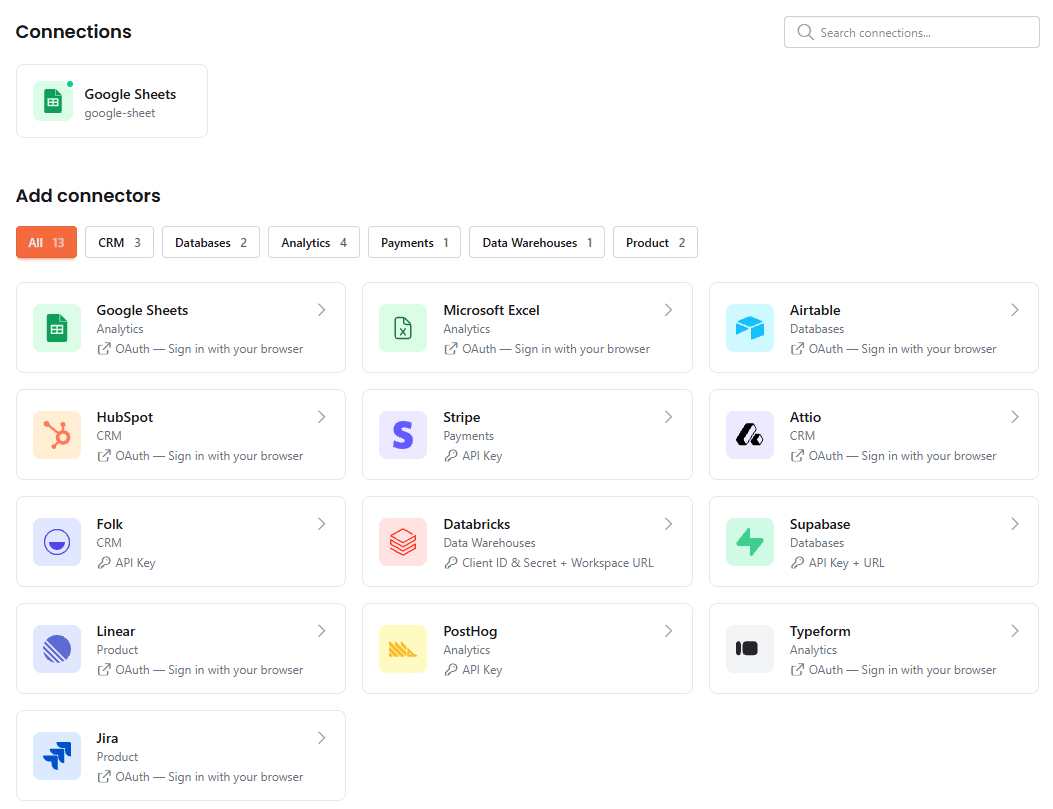
Connectors
For a source that isn’t on the list, let your AI tool be the connector. See Bring any source.
Add a connection
1
Pick the connector
Under Add connectors, select the tool. The category buttons above the list narrow it down.
2
Name it
Give the connection a Connection Name you’ll recognize later, such as “Marketing HubSpot”. It’s useful when you connect more than one account of the same tool.
3
Sign in or enter the key
For a browser sign-in, select Connect and sign in to the tool. For a key, paste it and select Save Connection. Each key dialog has a How to get your API key link to the tool’s own instructions. For Stripe, use a restricted key in production.
Use it in a dataset
A connection doesn’t bring any data in on its own. Add it to a dataset: create one and choose the connection when Create Dataset asks which connections to include. Gaia analyzes it together with the dataset’s other sources and links records across them, so a spreadsheet row can link to a HubSpot contact by name or email. See Create a dataset. Google Sheets and Excel Online can also be added straight from Add data under the prompt when you build.Manage a connection
Select a connection under Connections to see its provider, when it was connected and its status. From there you can:- Rename it: edit Connection Name and select Save.
- Test Connection to check that the sign-in or key still works.
- Delete it.