

Who can get in
In the builder, open your app and select the people icon in the left rail. The Access & sign-in panel sets who can open the app.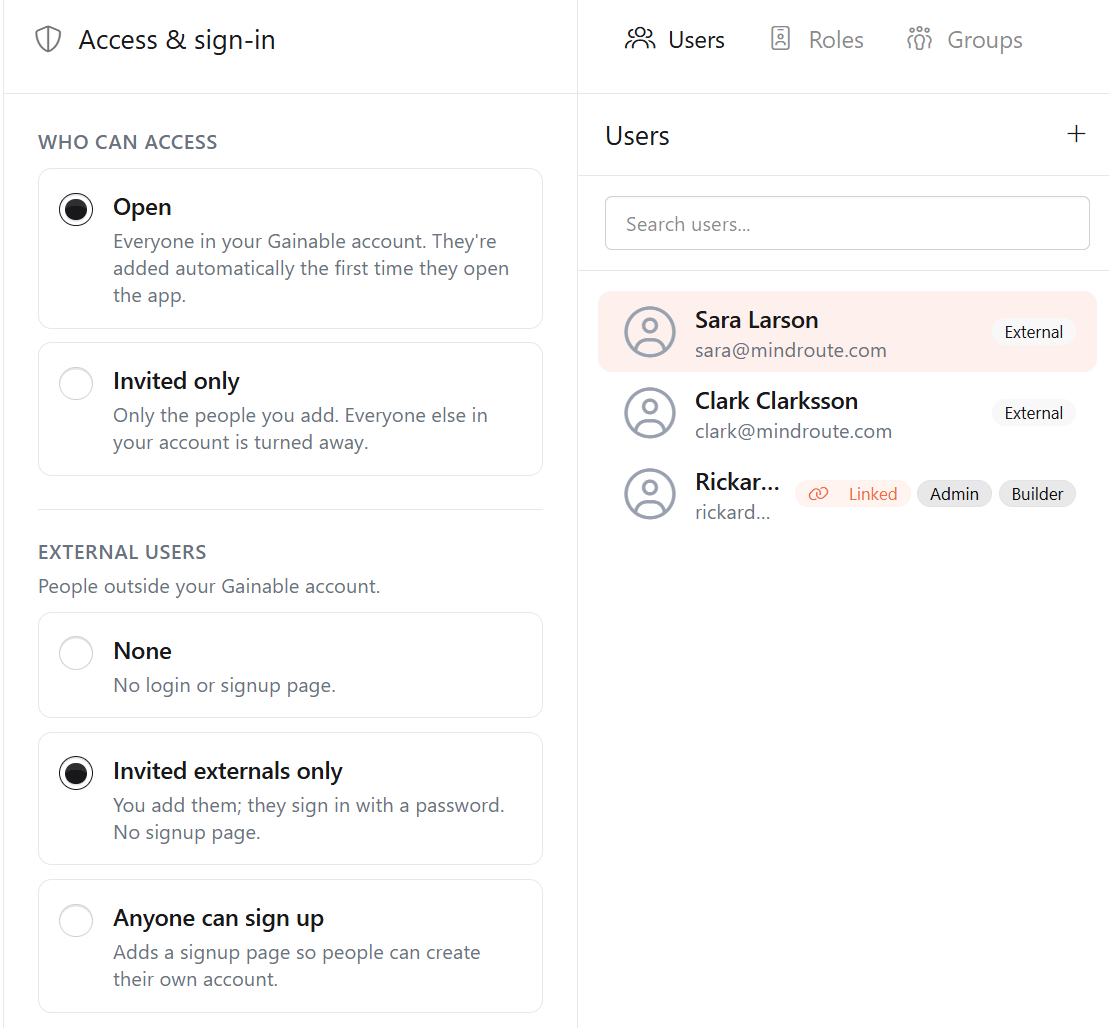
- Open: everyone in your Gainable account. They’re added to the app the first time they open it.
- Invited only: only the people you add. Everyone else in your account is turned away.
- None: no sign-in or sign-up page.
- Invited externals only: you add them, and they sign in with a password. There’s no sign-up page.
- Anyone can sign up: adds a sign-up page so people can create their own account. You can limit sign-ups to Allowed domains and Require email verification before login.
People in the app
The Users tab lists everyone in the app. Select + to add someone, or select a person to edit them.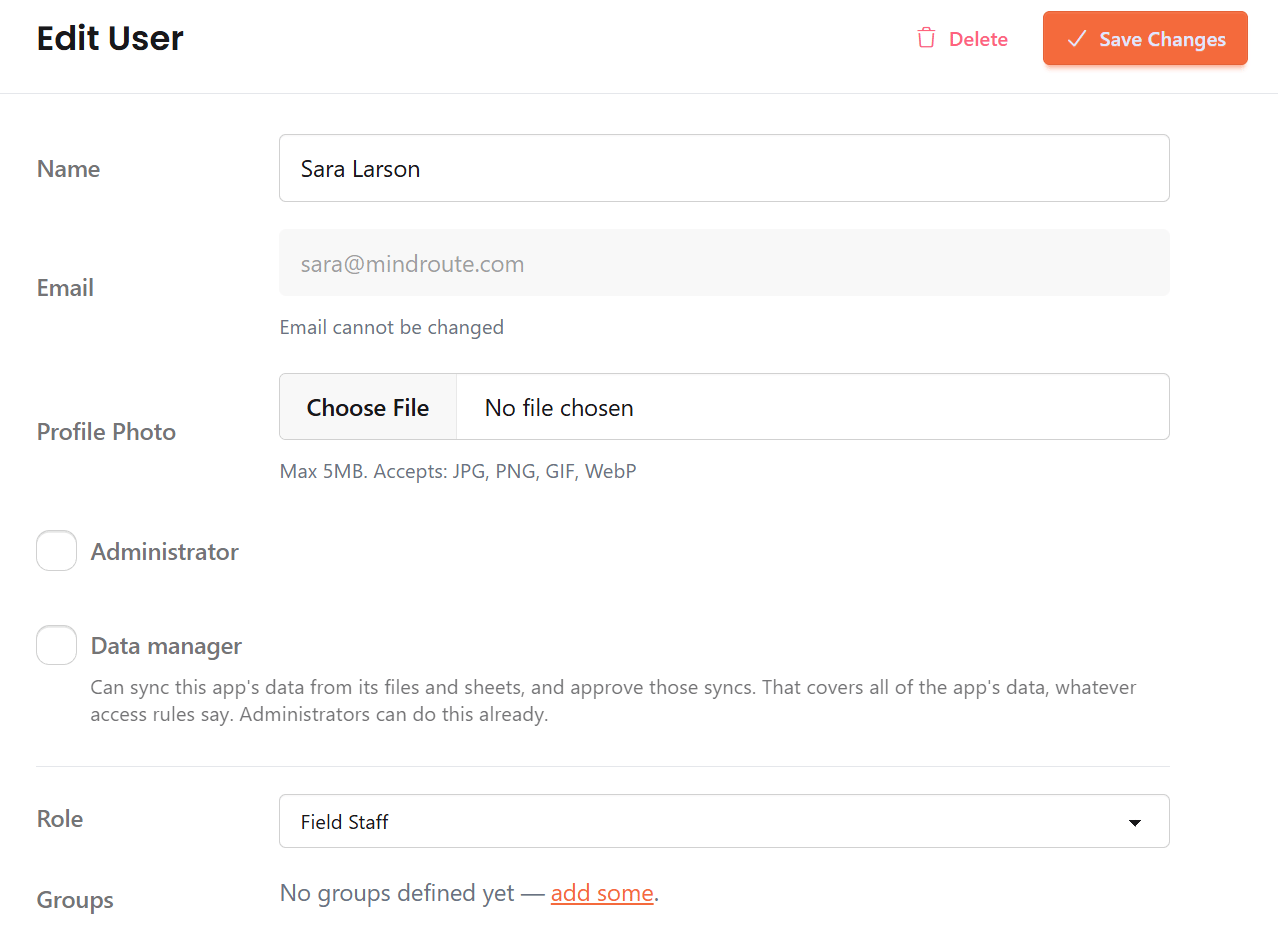
Roles and groups decide what people see. They never decide what people can administer: that’s what Administrator and Data manager are for. See Who does what for every kind of user side by side.
Add roles and groups on the Roles and Groups tabs, or ask for them in the builder chat. Then assign them to people on the Users tab.
What each person sees
Access rules decide which records each person sees. Describe them in plain words in the builder chat: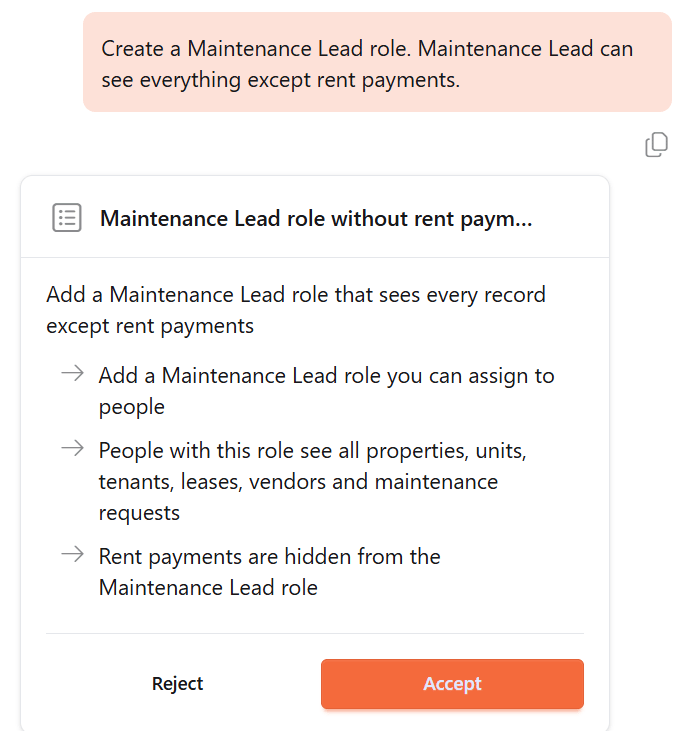
- One rule per column. Tightening or changing a rule replaces the old one instead of piling up.
- “Their own” means the person, not their name. For rules like “owners only see their own deals” to work, the owner column needs to hold real app users, not names typed as text. Ask Gaia to “make the owners app users” and it matches each name or email to a person, lists any it couldn’t match, and keeps the original value visible.
- Rules work on synced data. A rule can use a field added in the app on top of data that syncs from a spreadsheet or a connected tool, such as an owner assigned in Gainable. Reassigning a record takes effect immediately.
- When in doubt, hidden. If a rule can’t be applied, the data stays hidden rather than shown.
- Drafts until published. Rules on an unpublished app are marked as drafts. Rolling the app back to an earlier version also sets aside rules created after that point.