

Open the Data page
In the app, select the Data icon in the header. The page has three tabs: Sync, Log and Settings.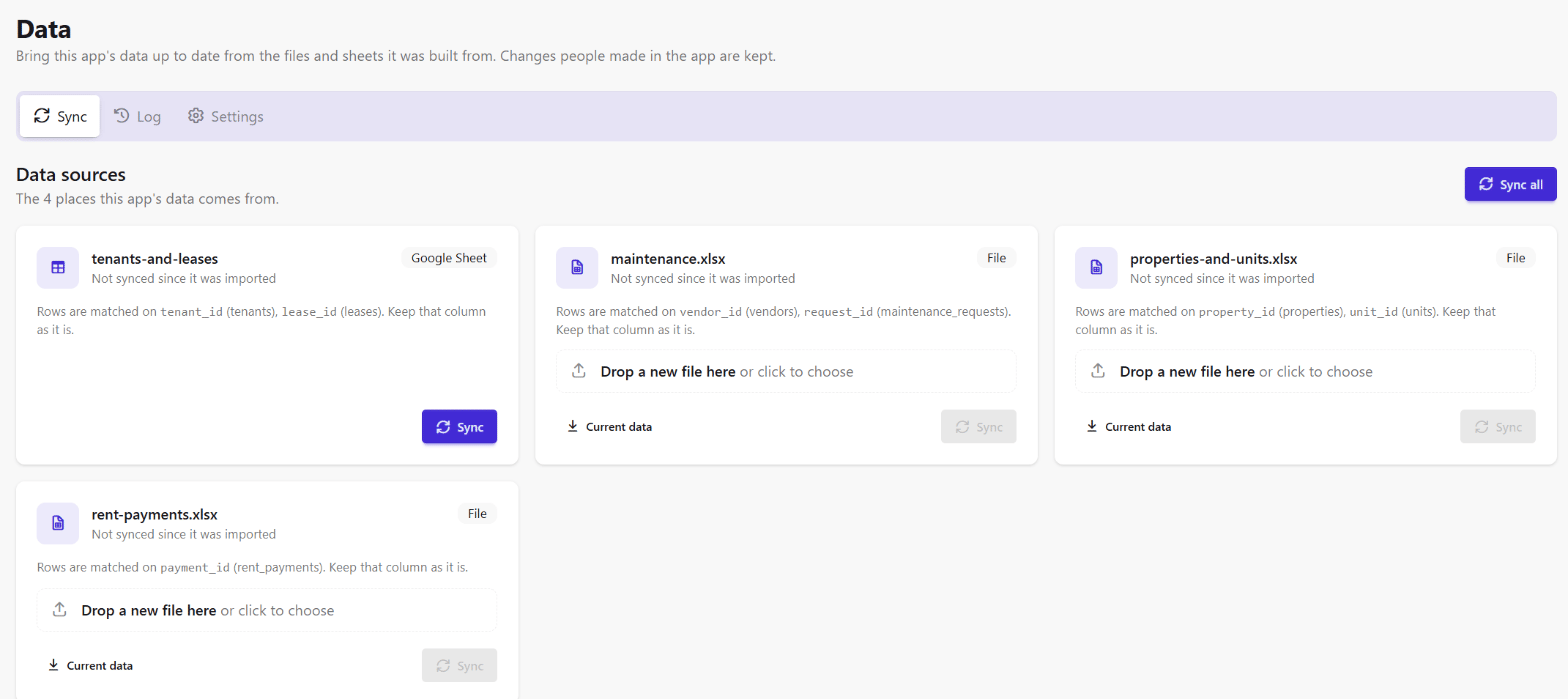
Sync
Each source the app’s data comes from has a card:- A connected sheet (Google Sheets or Excel Online) has a Sync button that reads it again.
- An uploaded file needs a new version. Drop it on the card, or click to choose it, then select Sync. Current data downloads the app’s current data in the file’s own layout, so you can edit it in Excel and upload it again.
tenant_id. Keep that column as it is in your file. It’s how Gainable knows which row is which, even when other values change.
What a sync does
- It merges. Rows that changed are updated, new rows are added, and edits people made in the app are kept. Unchanged rows aren’t touched.
- It asks before removing. If a new file doesn’t include rows that are in the app, the sync asks whether to keep or remove them. A file that only holds new rows is treated as an addition.
- It follows renamed tabs and columns. A renamed tab is followed and reported. If columns were renamed, rows are placed by their key values. If a layout changed in a way it can’t settle, the sync says which tab or columns it couldn’t find.
- It reads what’s in the file. Decimal commas, dates in any common order and text numbers are read the same way as when the app was built. See How Gaia reads your spreadsheets.
- It hands off what it can’t decide. Anything unclear goes to a chat with the app’s Assistant, with the app’s Data managers in it.
Log
The Log tab lists every sync: who ran it, how, and what changed. A sync can be undone from the log. Syncs also appear in the app’s activity log.Settings
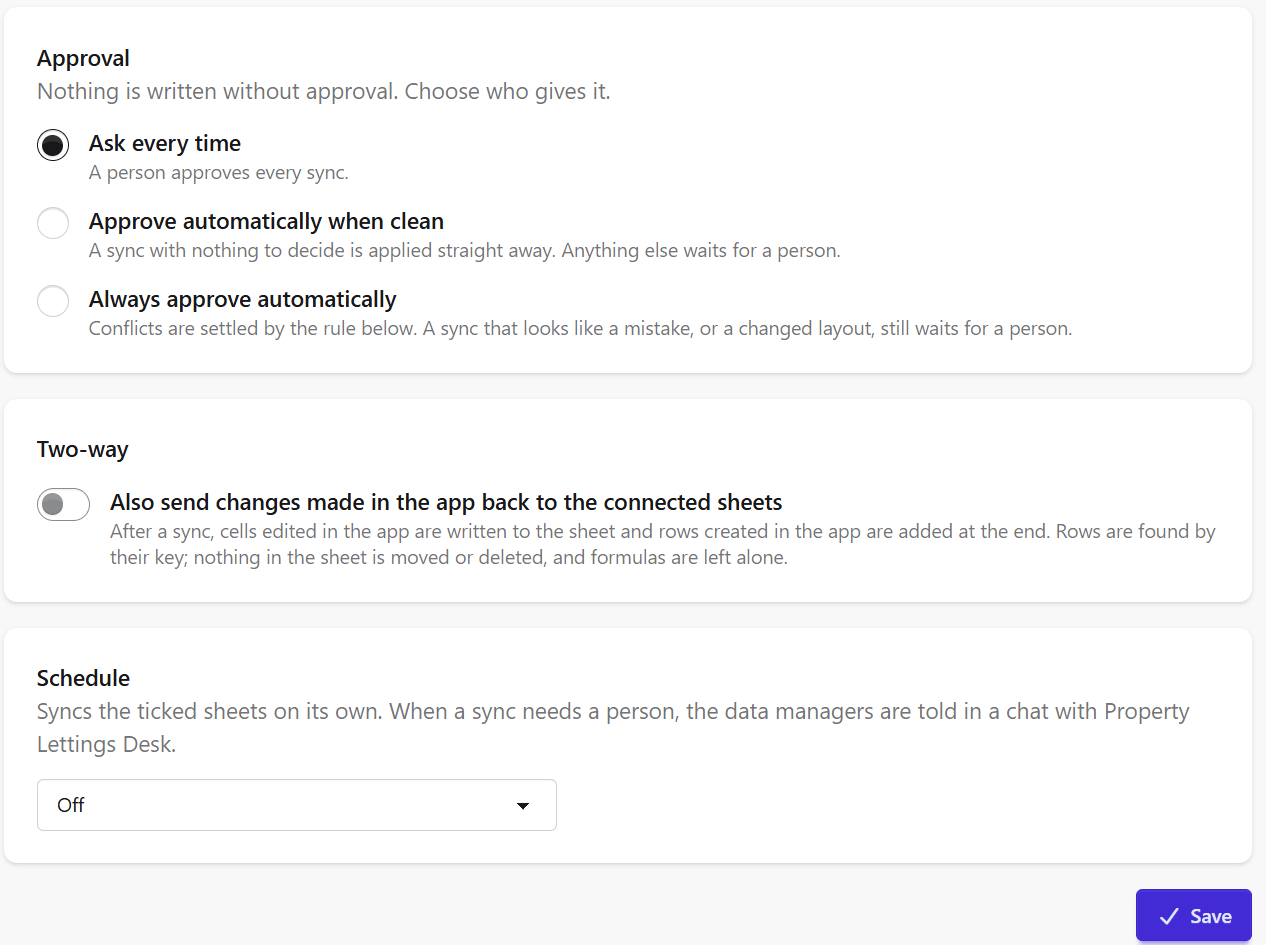
- Ask every time: a person approves every sync.
- Approve automatically when clean: a sync with nothing to decide is applied straight away. Anything else waits for a person.
- Always approve automatically: conflicts are settled by rule. A sync that looks like a mistake, or a changed layout, still waits for a person.