> ## Documentation Index
> Fetch the complete documentation index at: https://docs.gainable.dev/llms.txt
> Use this file to discover all available pages before exploring further.
# Troubleshooting
> Common issues and how to resolve them
## Common issues
### Build didn't create what I expected
**Problem:** The app looks different from what you described.
**Solutions:**
1. **Be more specific** - Add detail to your prompt
2. **Break it down** - Build in smaller steps
3. **Clarify fields** - List exact field names and types
**Before (vague):**
```text theme={null}
Make a CRM
```
**After (specific):**
```text theme={null}
Build a CRM with:
- Companies (name, industry, size)
- Contacts (name, email, phone, linked to company)
- Deals (name, amount, status, linked to company)
- Dashboard with deal totals
```
### Data isn't saving
**Problem:** You fill out a form but the data disappears.
**Solutions:**
1. **Check required fields** - Make sure all required fields are filled
2. **Describe the issue** - Tell Gainable: "The deal form isn't saving. The data disappears after I click save."
3. **Reload and retry** - Refresh the page and try again
### Changes not appearing for other users
**Problem:** Real-time updates aren't working.
**Solutions:**
1. **Check internet connection** - Ensure you're online
2. **Refresh the page** - Sometimes connections need to reconnect
3. **Same view?** - Make sure other users are viewing the same page
### Chart showing wrong data
**Problem:** The chart doesn't match your expectations.
**Solutions:**
1. **Specify the grouping** - "Group by status" vs "group by month"
2. **Name the date field** - "Use close date for the timeline"
3. **Request a change** - "The chart should show deals by status, not by company"
```text theme={null}
The deals by status pie chart is showing the wrong data.
It should group deals by their status field (new, won, lost)
and show the count in each status.
```
### Kanban cards not dragging
**Problem:** Cards won't move between columns.
**Solutions:**
1. **Refresh the page** - Reload to reinitialize
2. **Check console** - Open browser dev tools for error messages
3. **Report the issue** - "Cards on the kanban board aren't dragging"
### Filter not working
**Problem:** Filter selections don't change the displayed data.
**Solutions:**
1. **Clear and reselect** - Reset the filter and try again
2. **Check the field** - Make sure items have values in the filtered field
3. **Describe the issue** - "The status filter on the deals page isn't filtering"
## Requesting fixes
When something isn't working right, help Gainable understand by being specific:
### Be specific about what's wrong
```text Good theme={null}
"The deal amount is showing without a dollar sign.
It should display as currency like $50,000"
```
```text Vague theme={null}
"The amounts look wrong"
```
### Describe what you expected
```text Good theme={null}
"The chart should show deals grouped by status (won, lost, pending),
but it's grouping by company instead."
```
```text Vague theme={null}
"The chart is broken"
```
### Provide context
```text Good theme={null}
"On the deals page, when I click Add Deal and submit the form,
the deal doesn't appear in the list. I have to refresh the page
to see it."
```
```text Vague theme={null}
"Adding doesn't work"
```
## Getting help
### Describe the issue clearly
Include:
* **What you were trying to do**
* **What happened instead**
* **Any error messages you saw**
* **Steps to reproduce**
### Example help request
```text theme={null}
Issue: New tasks aren't showing on the kanban board
Steps:
1. Click "Add Task" button
2. Fill out the form (title: "Test task", status: "To Do")
3. Click Save
4. Form closes but task doesn't appear in "To Do" column
5. After refreshing the page, the task appears
Expected: Task should appear immediately after saving
```
## Browser issues
### Clear cache and cookies
Sometimes browser data causes issues:
1. Open browser settings
2. Find "Clear browsing data"
3. Select "Cookies" and "Cached images/files"
4. Clear for the Gainable site
### Try a different browser
If issues persist, try:
* Chrome
* Firefox
* Safari
* Edge
### Disable extensions
Browser extensions can interfere. Try:
1. Disable ad blockers temporarily
2. Disable other extensions
3. Try incognito/private mode
## Performance issues
### Slow loading
If your app feels slow:
1. **Check your data volume** - Very large datasets may load slowly
2. **Add pagination** - "Paginate the deals list with 25 items per page"
3. **Add filters** - Filter to show fewer items at once
### Charts loading slowly
For charts with lots of data:
1. **Limit the data** - "Show last 12 months only"
2. **Aggregate** - "Group by month instead of by day"
3. **Simplify** - Reduce the number of charts on one page
## Audit codebase
When something is stuck or behaving unexpectedly, you can run an automatic audit that analyzes your entire codebase to identify issues.
### How to run an audit
1. Open the **Pages panel** on the left side of the builder
2. Click the **three-dot menu** (⋮) at the top of the panel
3. Select **Audit codebase**
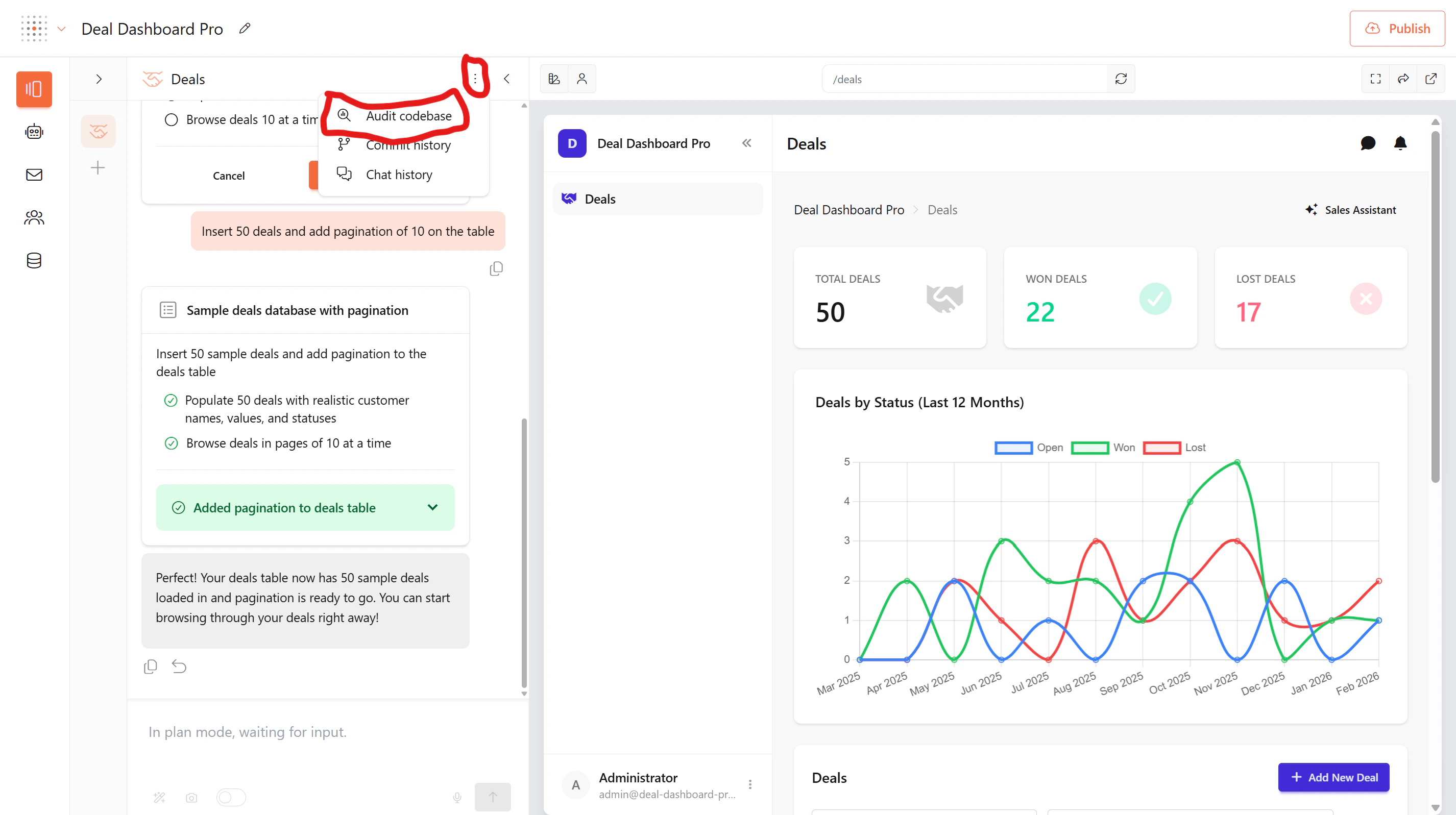 The audit will analyze your codebase to identify issues that may be causing problems with your build. This may take a while depending on the size of your codebase.
Use **Audit codebase** whenever something is getting stuck or behaving unexpectedly. It's the fastest way to diagnose build issues without contacting support.
## Still stuck?
If you've tried the above and still have issues, reach out to our support team. You can get help two ways:
### Live chat support
Click the **chat icon** in the bottom-left corner of the builder. This is available on any screen — whether you're working with Pages, Agents, Mail, Users, Collections, or managing Datasets, Data models, and Connectors.
You'll be connected to our support team instantly, right inside the app.
### Email support
You can also email us at **[support@gainable.dev](mailto:support@gainable.dev)** for non-urgent issues or longer requests.
### Tips for faster resolution
When reaching out, include:
1. **What you were trying to do**
2. **What happened instead**
3. **Any error messages you saw**
4. **Your chat history** — this helps our team track down issues much faster
### How to export chat history
Your chat history contains the full conversation with the build agent, including what you asked for and what was built. To export it:
1. Click the **three-dot menu** (⋮) at the top of the Pages panel
2. Select **Chat history**
The audit will analyze your codebase to identify issues that may be causing problems with your build. This may take a while depending on the size of your codebase.
Use **Audit codebase** whenever something is getting stuck or behaving unexpectedly. It's the fastest way to diagnose build issues without contacting support.
## Still stuck?
If you've tried the above and still have issues, reach out to our support team. You can get help two ways:
### Live chat support
Click the **chat icon** in the bottom-left corner of the builder. This is available on any screen — whether you're working with Pages, Agents, Mail, Users, Collections, or managing Datasets, Data models, and Connectors.
You'll be connected to our support team instantly, right inside the app.
### Email support
You can also email us at **[support@gainable.dev](mailto:support@gainable.dev)** for non-urgent issues or longer requests.
### Tips for faster resolution
When reaching out, include:
1. **What you were trying to do**
2. **What happened instead**
3. **Any error messages you saw**
4. **Your chat history** — this helps our team track down issues much faster
### How to export chat history
Your chat history contains the full conversation with the build agent, including what you asked for and what was built. To export it:
1. Click the **three-dot menu** (⋮) at the top of the Pages panel
2. Select **Chat history**
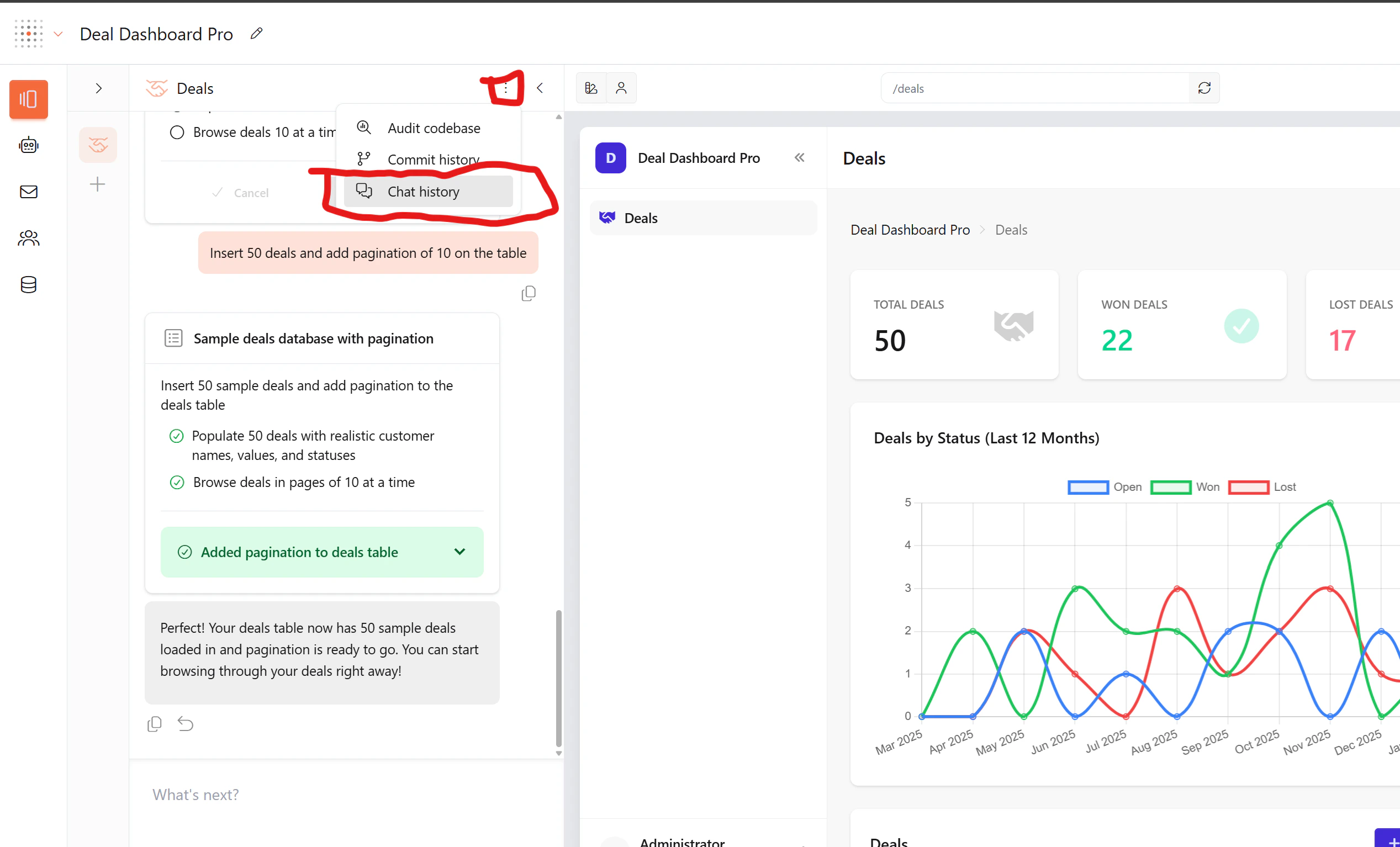 Always attach your chat history when contacting support — whether via live chat or email. It gives our team full context and helps us resolve your issue much faster.
Open the builder and click the chat icon in the bottom-left corner
Email us at [support@gainable.dev](mailto:support@gainable.dev)
Always attach your chat history when contacting support — whether via live chat or email. It gives our team full context and helps us resolve your issue much faster.
Open the builder and click the chat icon in the bottom-left corner
Email us at [support@gainable.dev](mailto:support@gainable.dev)