> ## Documentation Index
> Fetch the complete documentation index at: https://docs.gainable.dev/llms.txt
> Use this file to discover all available pages before exploring further.
# Best practices
> Dos and don'ts for writing effective prompts
## Do this
### Be specific about data fields
```text Do this theme={null}
Track contacts with:
- Full name
- Email address
- Phone number
- Company name
- Job title
- LinkedIn profile URL
```
```text Don't do this theme={null}
Track contact information
```
### Specify field types when it matters
```text Do this theme={null}
Track deals with:
- Deal name (text)
- Amount (currency)
- Close date (date)
- Probability (percentage)
- Status (new, negotiating, won, lost)
```
```text Don't do this theme={null}
Track deals with name, amount, date, probability, status
```
Common field types to specify:
* **Currency**: "amount (currency)" or "price in dollars"
* **Date**: "due date" or "close date"
* **Percentage**: "probability (percentage)"
* **Options**: "status (option A, option B, option C)"
* **Yes/No**: "is active (yes/no)" or "completed (checkbox)"
### Describe relationships clearly
```text Do this theme={null}
Build a project system where:
- Projects have a name and description
- Each project has multiple tasks
- Tasks have a title, due date, and status
- Each task is assigned to one user
```
```text Don't do this theme={null}
Track projects, tasks, and users
```
### Request specific visualizations
```text Do this theme={null}
Add a dashboard with:
- Total revenue card
- Number of deals card
- Pie chart showing deals by status
- Line chart showing monthly revenue trend
```
```text Don't do this theme={null}
Add a dashboard with some charts
```
### Define options explicitly
```text Do this theme={null}
Status options: draft, pending review, approved, rejected
Priority levels: low, medium, high, critical
```
```text Don't do this theme={null}
Add status and priority fields
```
***
## Don't do this
### Don't reference other products
```text Don't do this theme={null}
Build something like Asana
Make it work like Notion
Copy the Salesforce pipeline
```
```text Do this instead theme={null}
Build a task manager with:
- Projects containing tasks
- Tasks with title, assignee, due date, status
- Kanban board view
- List view with filters
```
Why: Gainable doesn't know what features you want from those products. Describe the specific features you need.
### Don't use vague design terms
```text Don't do this theme={null}
Make it modern
Keep it clean
Professional looking
```
```text Do this instead theme={null}
Use the corporate theme
Use blue and gray colors
Use a sidebar navigation layout
```
### Don't request everything at once
```text Don't do this theme={null}
Build a complete CRM with leads, contacts, companies,
deals, tasks, emails, calendar, reports, dashboards,
team management, permissions, notifications, and
mobile app with offline support.
```
```text Do this instead theme={null}
Build a deal tracker with:
- Deals (name, amount, status, close date)
- Contacts (name, email, linked to deal)
- Dashboard with deal totals
(Then add more features in subsequent prompts)
```
### Don't assume Gainable knows your domain
```text Don't do this theme={null}
Build a standard e-commerce checkout flow
Add the usual project management features
```
```text Do this instead theme={null}
Build checkout with:
- Cart review step
- Shipping address form
- Payment method selection
- Order confirmation page
```
***
## Updating existing apps
When modifying an app you've already built:
### Reference existing elements
```text Good theme={null}
Add a due date field to the Task model
```
```text Less clear theme={null}
Add due dates
```
### Specify where to make changes
```text Good theme={null}
On the deals page, add a filter dropdown for status
```
```text Ambiguous theme={null}
Add filtering
```
### Build on what exists
```text Good theme={null}
Add a chart showing Tasks grouped by status
```
```text Creates confusion theme={null}
Add a chart showing items by category
(What items? What category?)
```
***
## Screenshot and annotate — your secret weapon
Sometimes words aren't enough. Instead of trying to describe exactly what's wrong or what you want changed, you can **take a screenshot of your app and annotate it** with drawings, arrows, and text to show the agent exactly what you mean.
### How it works
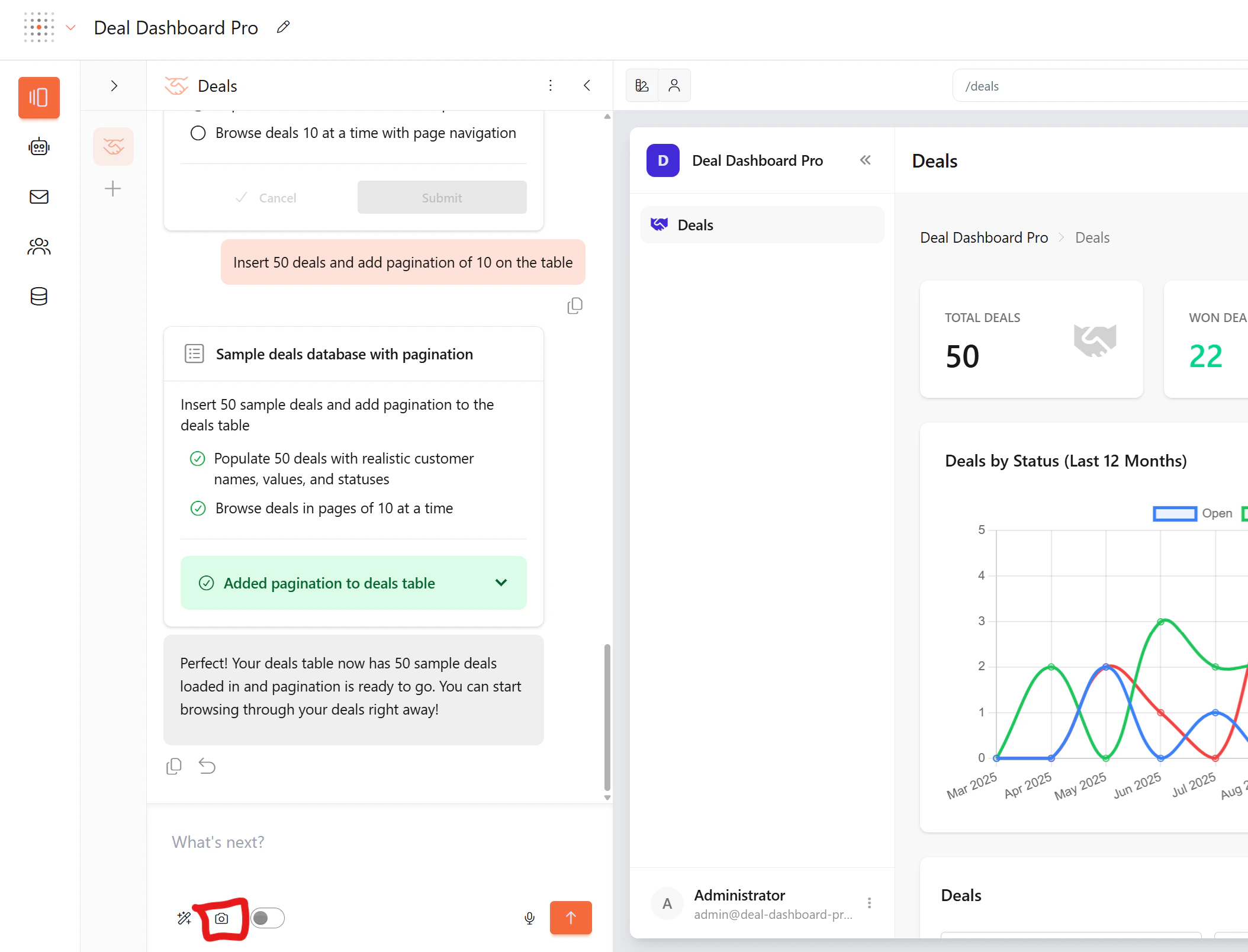
1. Click the **camera icon** in the chat input toolbar
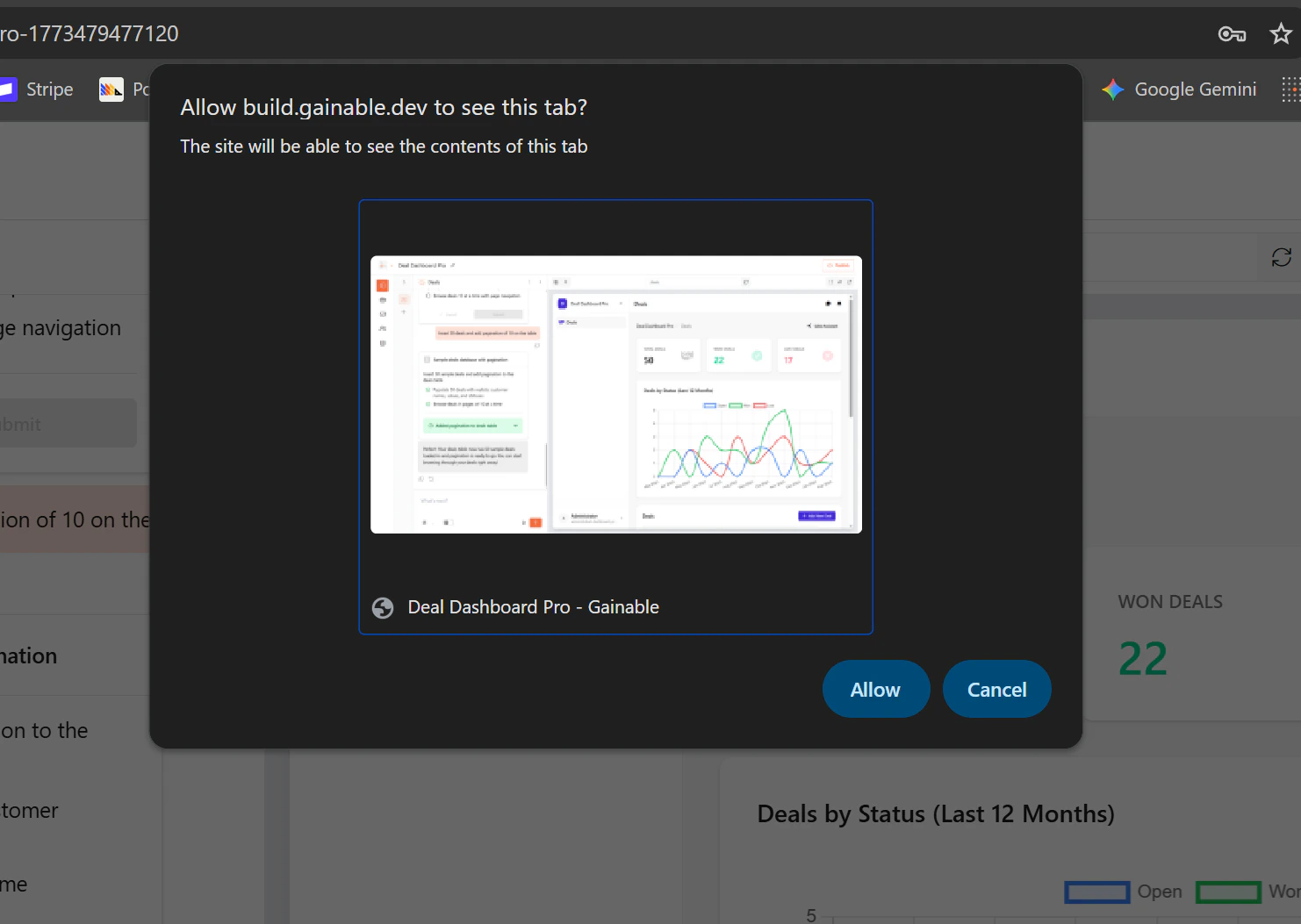
 2. **Allow** the browser to capture your current tab when prompted
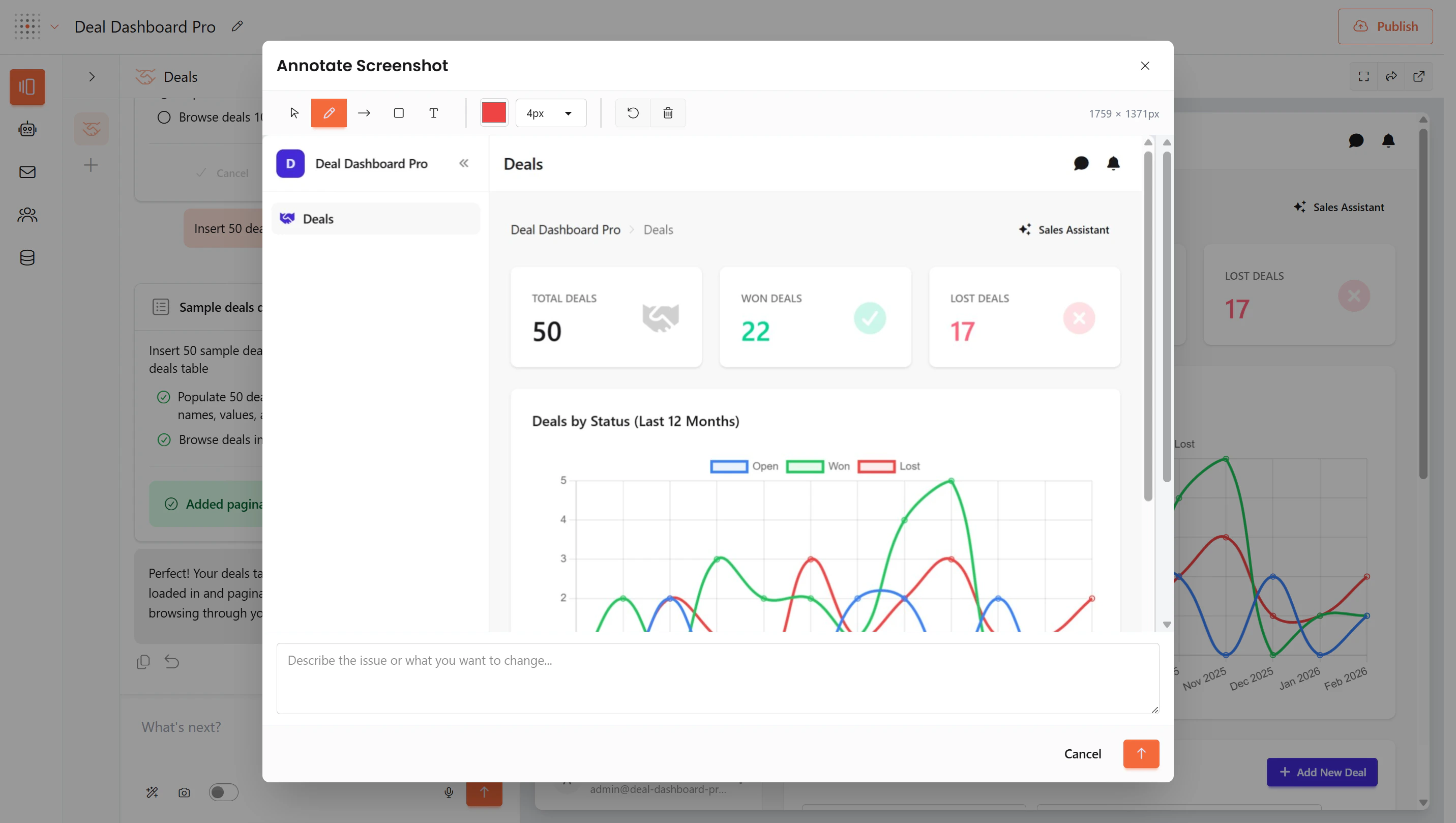
 3. The **Annotate Screenshot** editor opens — use the toolbar to:
* **Draw** freehand circles, underlines, or highlights
* **Add arrows** pointing to specific elements
* **Add text** labels explaining what to change
* **Draw rectangles** to highlight areas of interest
4. Add a **written description** in the text field below the screenshot
5. Click **send** to submit the annotated screenshot with your instructions
3. The **Annotate Screenshot** editor opens — use the toolbar to:
* **Draw** freehand circles, underlines, or highlights
* **Add arrows** pointing to specific elements
* **Add text** labels explaining what to change
* **Draw rectangles** to highlight areas of interest
4. Add a **written description** in the text field below the screenshot
5. Click **send** to submit the annotated screenshot with your instructions
 ### When to use it
* **Something looks wrong** — circle it and say "this should be blue, not red"
* **Layout issues** — draw arrows showing where elements should move
* **Missing elements** — point to where a button or field should appear
* **Exact positioning** — show precisely where you want a chart or component placed
Annotated screenshots are the fastest way to communicate visual changes. A quick circle and arrow with "move this here" is worth a thousand words.
***
## Asking questions vs requesting builds
Gainable can answer questions about your project without making changes.
### To ask a question
```text theme={null}
How does the task filtering work?
What fields does the Deal model have?
Where is the dashboard code?
```
### To request a change
```text theme={null}
Add a due date field to tasks
Change the dashboard to show monthly data
Fix the filter to include all statuses
```
Start questions with "how", "what", "where", or "explain" to get information without triggering a build.
***
## Recovery from mistakes
If something wasn't built correctly:
### Be specific about what's wrong
```text Clear theme={null}
The deal amount is showing without the dollar sign.
Format it as currency.
```
```text Vague theme={null}
The amounts look wrong
```
### Describe what you expected
```text Clear theme={null}
The chart should show deals grouped by status, but
it's showing them grouped by company. Change it to
group by status.
```
```text Vague theme={null}
The chart is wrong
```
***
## Quick reference
| Situation | Best Practice |
| --------------- | ------------------------------------------- |
| Defining data | List all fields with types |
| Connecting data | Explicitly state relationships |
| Adding charts | Name the chart type and what data it shows |
| Adding features | Use feature names (kanban, chat, filter) |
| Styling | Reference theme names or specific colors |
| Updating | Reference existing elements by name |
| Fixing issues | Describe what's wrong and what you expected |
## Learn more
See real prompts in action
Templates for common app types
### When to use it
* **Something looks wrong** — circle it and say "this should be blue, not red"
* **Layout issues** — draw arrows showing where elements should move
* **Missing elements** — point to where a button or field should appear
* **Exact positioning** — show precisely where you want a chart or component placed
Annotated screenshots are the fastest way to communicate visual changes. A quick circle and arrow with "move this here" is worth a thousand words.
***
## Asking questions vs requesting builds
Gainable can answer questions about your project without making changes.
### To ask a question
```text theme={null}
How does the task filtering work?
What fields does the Deal model have?
Where is the dashboard code?
```
### To request a change
```text theme={null}
Add a due date field to tasks
Change the dashboard to show monthly data
Fix the filter to include all statuses
```
Start questions with "how", "what", "where", or "explain" to get information without triggering a build.
***
## Recovery from mistakes
If something wasn't built correctly:
### Be specific about what's wrong
```text Clear theme={null}
The deal amount is showing without the dollar sign.
Format it as currency.
```
```text Vague theme={null}
The amounts look wrong
```
### Describe what you expected
```text Clear theme={null}
The chart should show deals grouped by status, but
it's showing them grouped by company. Change it to
group by status.
```
```text Vague theme={null}
The chart is wrong
```
***
## Quick reference
| Situation | Best Practice |
| --------------- | ------------------------------------------- |
| Defining data | List all fields with types |
| Connecting data | Explicitly state relationships |
| Adding charts | Name the chart type and what data it shows |
| Adding features | Use feature names (kanban, chat, filter) |
| Styling | Reference theme names or specific colors |
| Updating | Reference existing elements by name |
| Fixing issues | Describe what's wrong and what you expected |
## Learn more
See real prompts in action
Templates for common app types